| Previous Page |
PCLinuxOS Magazine |
PCLinuxOS |
Article List |
Disclaimer |
Next Page |
mpv: Using The "Forgotten" Multimedia Player As An OTA TV Player |
|
by Paul Arnote (parnote)
Recently, I read an article from HowToGeek about mpv. Back when I was writing articles about the programs you can use to watch OTA TV broadcasts on your desktop, I had completely overlooked mpv as a possible tool to use for watching those broadcasts. In fact, most of the time when I think or talk about the various multimedia programs available, mpv is never at the front of my mind (if it’s even thought of at all). In fact, it’s so seldom thought of, I really cannot remember us writing about mpv at all in the time since I’ve been the editor. That’s a long time (17+ years). 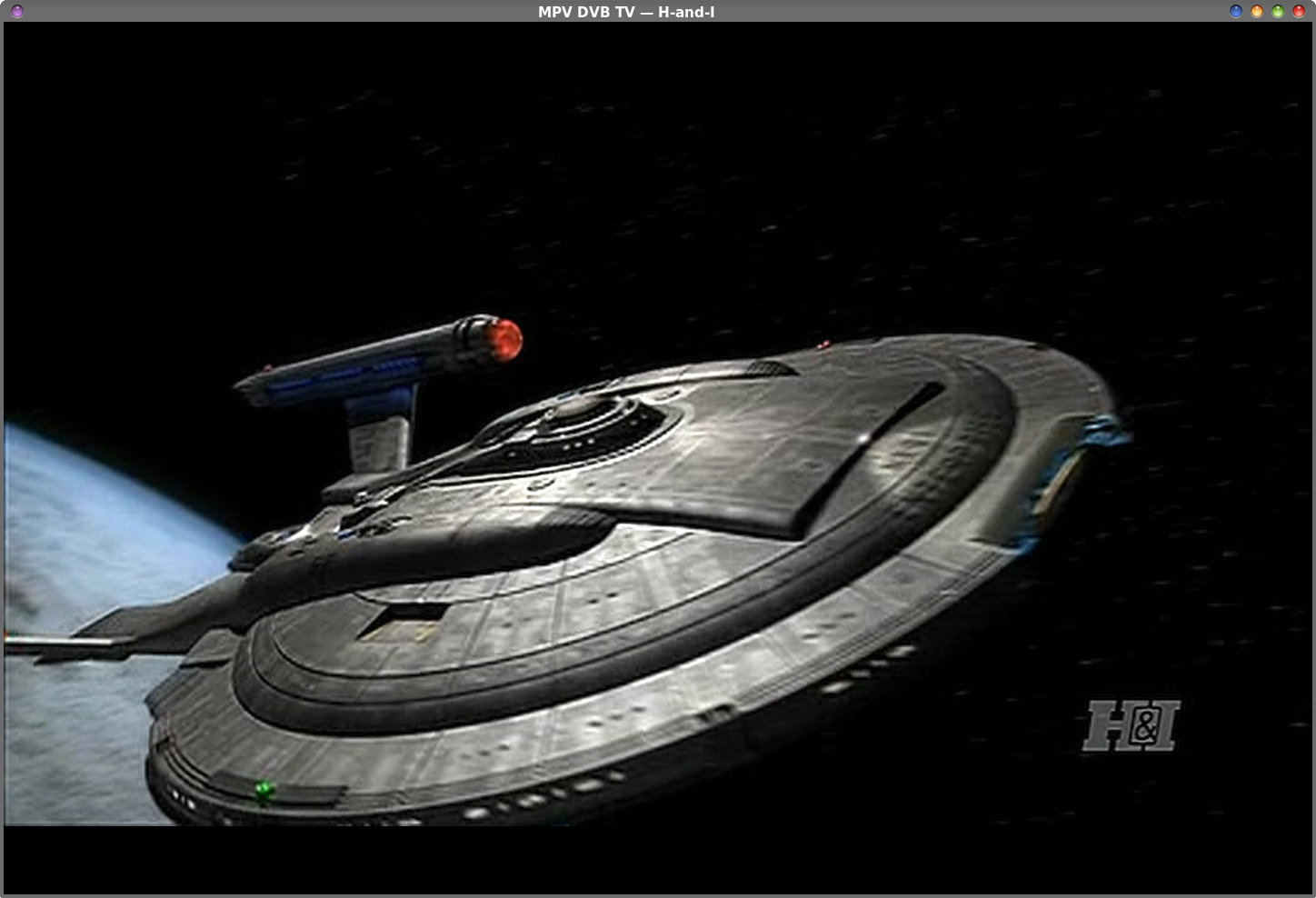 A Little History On MPV mpv is a fork of a fork. No, really! According to Wikipedia, in 2010, mplayer2 was forked from Mplayer. In 2012, mpv was forked from mplayer2. Its goal was to encourage developer activity by removing unmaintainable code and dropping support for very old systems. As a result, the project received a large influx of contributions. mpv is a multiplatform offering, with versions existing for Linux, macOS, BSD, and Windows. There is even an unofficial Android port of mpv. mpv seems to have been designed from the get-go to be a command line program. As a result, its GUI is about as minimalist as you can get and still have a window. The OSC, or on-screen controller, was added to help offer basic mouse interactions, gave new users easier access to the controls, and to allow precise and direct seeking during playback of multimedia elements. The multimedia engine powering mpv is ffmpeg, so pretty much any file or multimedia format that ffmpeg can recognize can be played back in mpv. There are several programs that provide a graphical interface for mpv (and they are listed in the Wikipedia article). Probably the one most familiar to PCLinuxOS users is SMPlayer. If SMPlayer is not installed on your computer, you can easily install it from the PCLinuxOS repository, via DNF or DNF-PM. SMPlayer can use either mplayer or mpv as its multimedia backend. My copy of SMPlayer is set up to use mpv. I don’t remember ever changing it in SMPLayer’s preferences, so it must have been installed that way. As a result, SMPlayer can also be used to watch OTA television broadcasts, so maybe we’ll take a look at that in a future article. 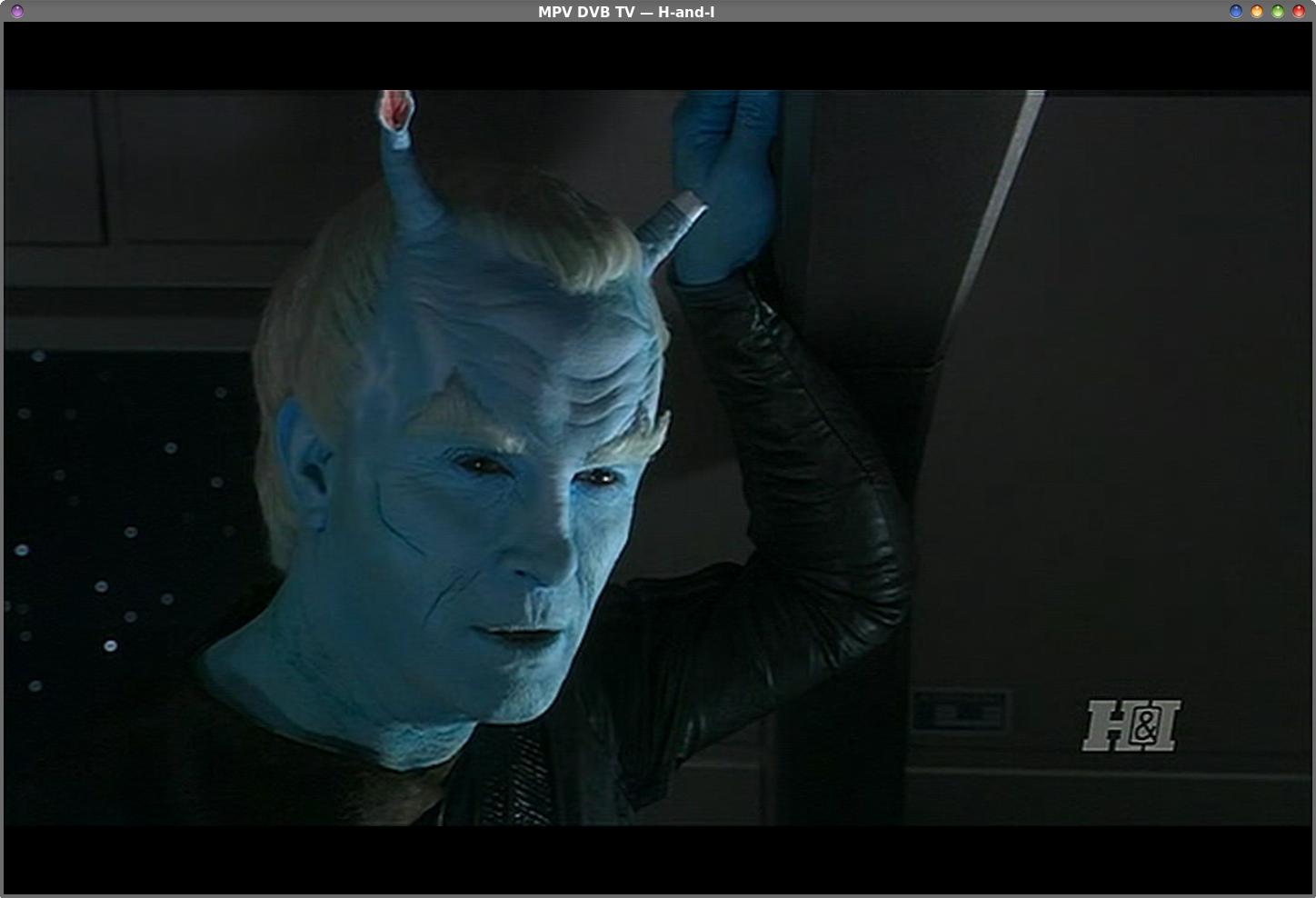 So What Can mpv Do For You? mpv can do a lot. You’ll likely be as surprised as I was at all of the things it’s capable of doing. It actually boggles my mind how much mpv can do. Just typing mpv -- help at the command line doesn’t even begin to tell the story. Doing so nets you this information:
Basic options: But, typing mpv --list-options displays nearly 1300 other options to control various aspects and performance parameters for mpv. But, to be completely honest, it’s not the easiest to digest being displayed in a terminal program. It’s much easier to output the information to a simple text file, where you can use your favorite text editor’s “Search” function to ferret out the information you are seeking. To do this is super simple. First, from a command line prompt, traverse to the directory where you want to store the file, and then type mpv --help > mpv-commands.txt. This will cause the output to be directed to the file mpv-commands.txt. Notice the use of only one redirect sign (the greater than sign) in this command. Then, at the command line, type mpv --list-options >> mpv-commands.txt. Pay particularly close attention to the redirect sign used here. There are TWO “greater than” signs pointing to our text file. This will append all of the options to the end of the mpv-commands.txt file, without overwriting the file’s current contents. When it’s all done, you should have one text file with all of mpv’s commands located in one text file with over 1300 lines. It is also helpful that all of the options listed are in alphabetical order, which makes the information a bit easier to find (provided you know or have an idea of what you’re looking for). You can also view the mpv manual, here. It’s basically the same information, broken down into categories. In my humble opinion, the simple text file is easier to search through, since I don’t always know under which category to look for the information I’m seeking. There is another site that provides some more documentation for mpv here. Like I mentioned, mpv can do a LOT. In fact, I wouldn’t even know where to start when writing about all of the things that mpv can do. Someone well versed in mpv could probably write a series of books on everything mpv can do. So, this article isn’t intended to be a complete overview of all the things that mpv is capable of doing. I don’t have that much time or knowledge to be able to write something of that nature, anyways. So, we’ll focus our attention on using mpv to serve as a TV Player for OTA TV broadcasts. It’s a great way to “introduce” you to the world’s “forgotten” multimedia player. So, in a large way, we’re just beginning to scratch the surface of mpv’s capabilities.
I’ll be honest here. All of my scripts listed here were created by ChatGPT. If nothing else, it helps illustrate one good use of AI at a time when it appears that AI is well poised to … well … run amok. Since mpv is a fork of a fork of Mplayer, you will need to create a channels.conf file for mpv to use. Fortunately, the channels.conf file used for Mplayer also works for mpv. If you already have a channels.conf file for Mplayer, you can just copy it over to the $HOME/.config/mpv directory. But, if you need to create the channels.conf file from scratch, you will first need to go back and read the article in the August 2022 issue of The PCLinuxOS Magazine. Specifically, you need “Script #1” from that article. Running that script will produce the channels.conf file you need. The journey started with one short, simple script (below), called mpv-channel-list1.sh.
CHANNELS_CONF="$HOME/.config/mpv/channels.conf"
CHANNEL=$(cut -d: -f1 "$CHANNELS_CONF" | \
if [ -n "$CHANNEL" ]; then 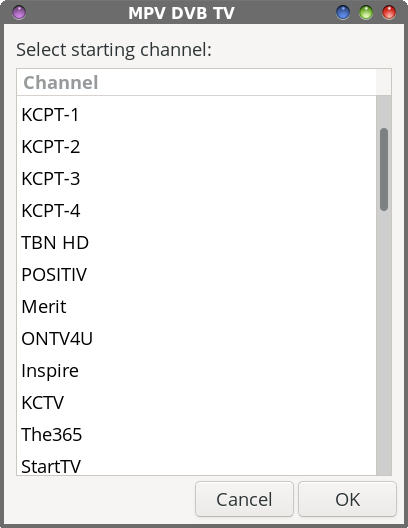 At only 341 bytes in size, this script is the simplest implementation I can come up with for using mpv to watch a selected OTA TV broadcast from a list of available channels. And, there really isn’t much to it. We populate a Zenity dialog box list with the first field of the entries in the channels.conf file, and pass the selected channel name to mpv for playback. With the mpv command, I tell mpv to display the broadcast image as “deinterlaced” with the --deinterlace=yes parameter … because I *hate* being able to see the interlaced video scanlines in the image shown by mpv. I then set the window size to 1440 x 960 pixels, with the “--geometry=1440x960” parameter. I do this in all of the scripts, because it allows extra room at the top and bottom of the mpv window for displaying the OSC and volume levels without displaying them over the broadcast image. Ok, so I’m picky that way. Also, by leaving that out, some of the windows produced by mpv are too small to watch comfortably. mpv will adjust the image automatically to fill the window, constraining the video ratio appropriately. Then, I tell mpv to play from my TV tuner card, using “dvb://[channel-name]”. For what it’s worth, “DVB” stands for Digital Video Broadcasting. 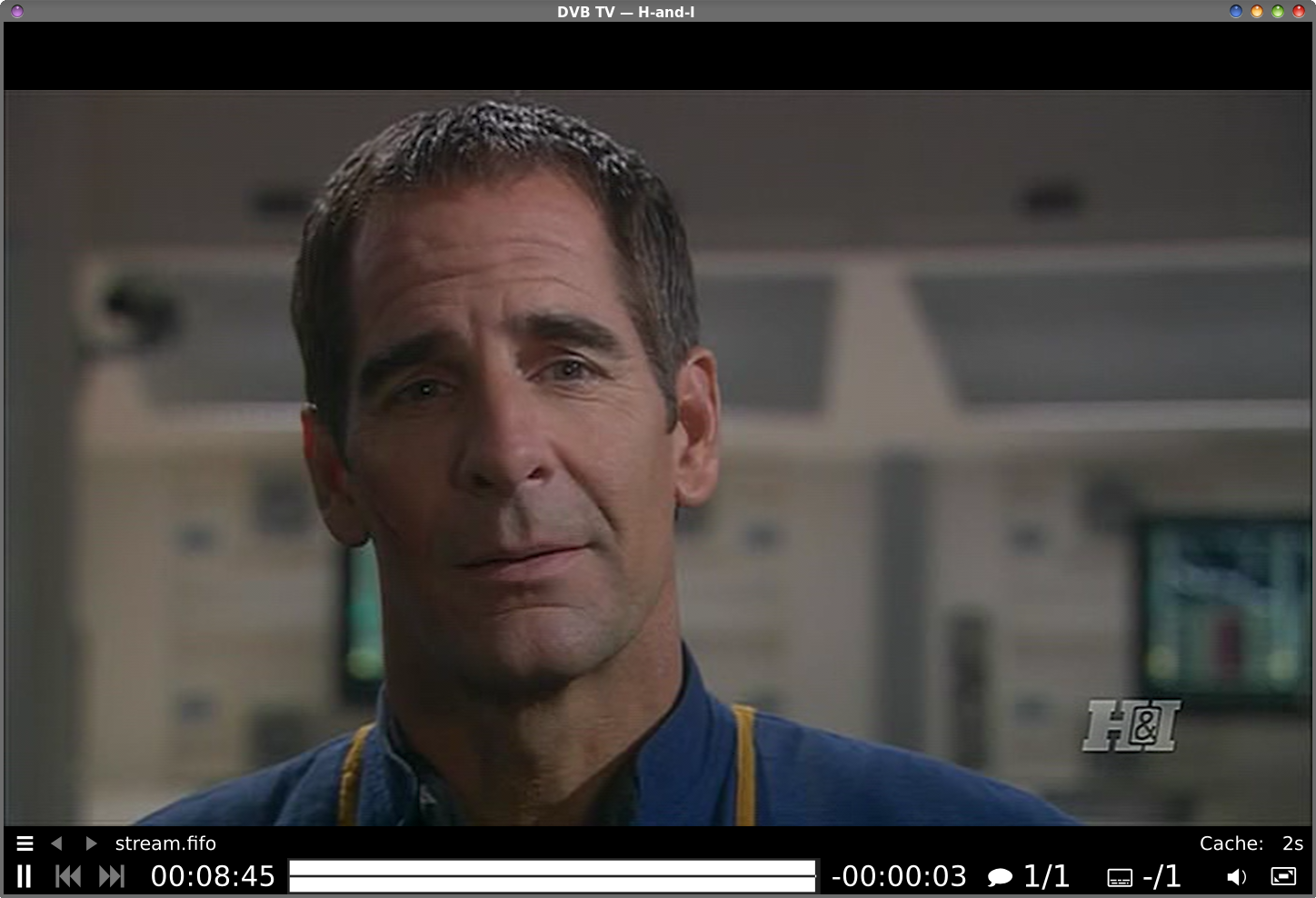 The entire OSC fits entirely beneath the mpv image, instead of over the image.
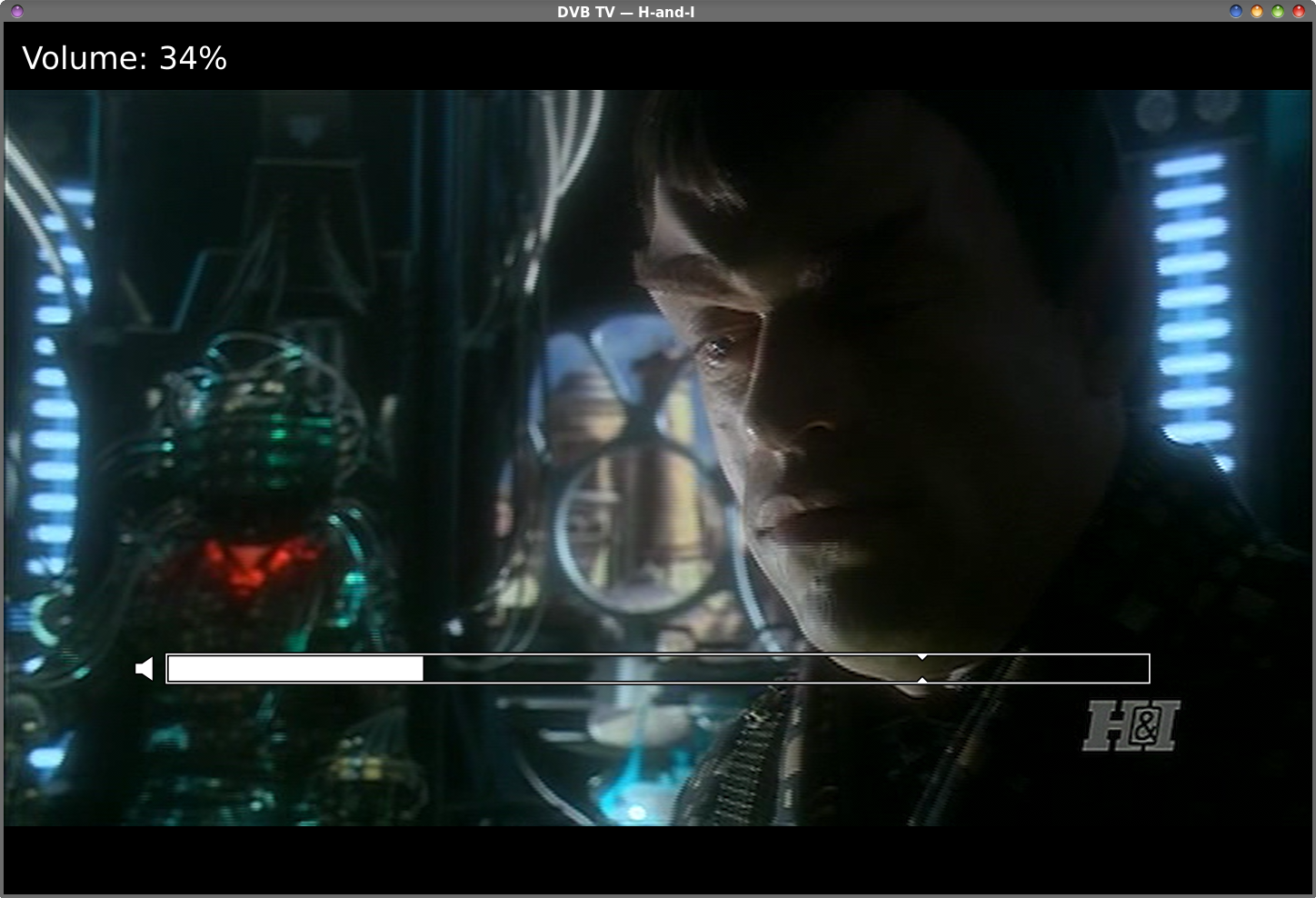 The extra space at the top of the window provides a place for the volume level to be displayed (upper left), instead of over the mpv image. The volume is most easily changed via the scroll wheel on a mouse.
And, this script works great. It displays the selected OTA TV broadcast in the mpv window. But, you cannot change channels. To watch another channel, you need to exit the mpv window, and rerun the script to select a different channel. And, if that’s all you need or want, I’ll tell you that it works great. But what if you want to start viewing OTA TV broadcasts with one channel, and want to access the other OTA channels in your area? To do that requires a LOT more coding. According to ChatGPT, the version of mpv in the PCLinuxOS repository (0.41.0) isn’t compiled with full DVB support, only basic support for DVB. So, that means that we cannot create a playlist of channels to facilitate being able to change channels within mpv. Still, it’s possible, but we have to do an “end run” around this limitation. (Stay with me … this really works!) Had mpv been compiled with full DVB support, then it would have been a very simple matter to just make a channels.m3u playlist file, and mpv would be able to change channels after initially showing the chosen channel. But of course, I wanted to be able to change channels after having mpv starting up with the chosen channel displayed. Keep in mind that this whole script is pretty large (1,000 lines, without subtracting out the blank lines), so I won’t be reprinting the entire script here in the magazine, as I do with most of the scripts I feature in the magazine. Instead, I’ll only be providing a link to download the scripts (yes, there are three scripts, including the one listed above) from the magazine server. I put them all into one tar.gz file for convenience. The tar.gz file, named mpv-dvb-tv-scripts.tar.gz, is only 8.0KiB in size, so it’ll download in the literal blink of an eye. Once you download the tar.gz file containing the scripts, extract the scripts to the directory where you normally store your scripts, and be sure to mark them as being executable. If the directory you normally store your scripts in is also defined in your $PATH statement, then launching them is super easy (just the name of the script on a command line (along with any required parameters) or as the command line for a launcher). Otherwise, you will have to provide a fully qualified path and filename to launch the script(s). Like I mentioned, the tar.gz file contains three scripts. They are mpv-channel-list1.sh, mvp-dvb-tv5.sh, and mpv-dvb-tv5.py. The “end run” that ChatGPT used to get around the lack of full DVB support in the PCLinuxOS version of mpv is complex, and honestly, not something I would have thought of. It uses MPEG transport streams, FIFOs, and a couple of other helper programs to provide a version of MPV DVB TV that allows us to change channels. 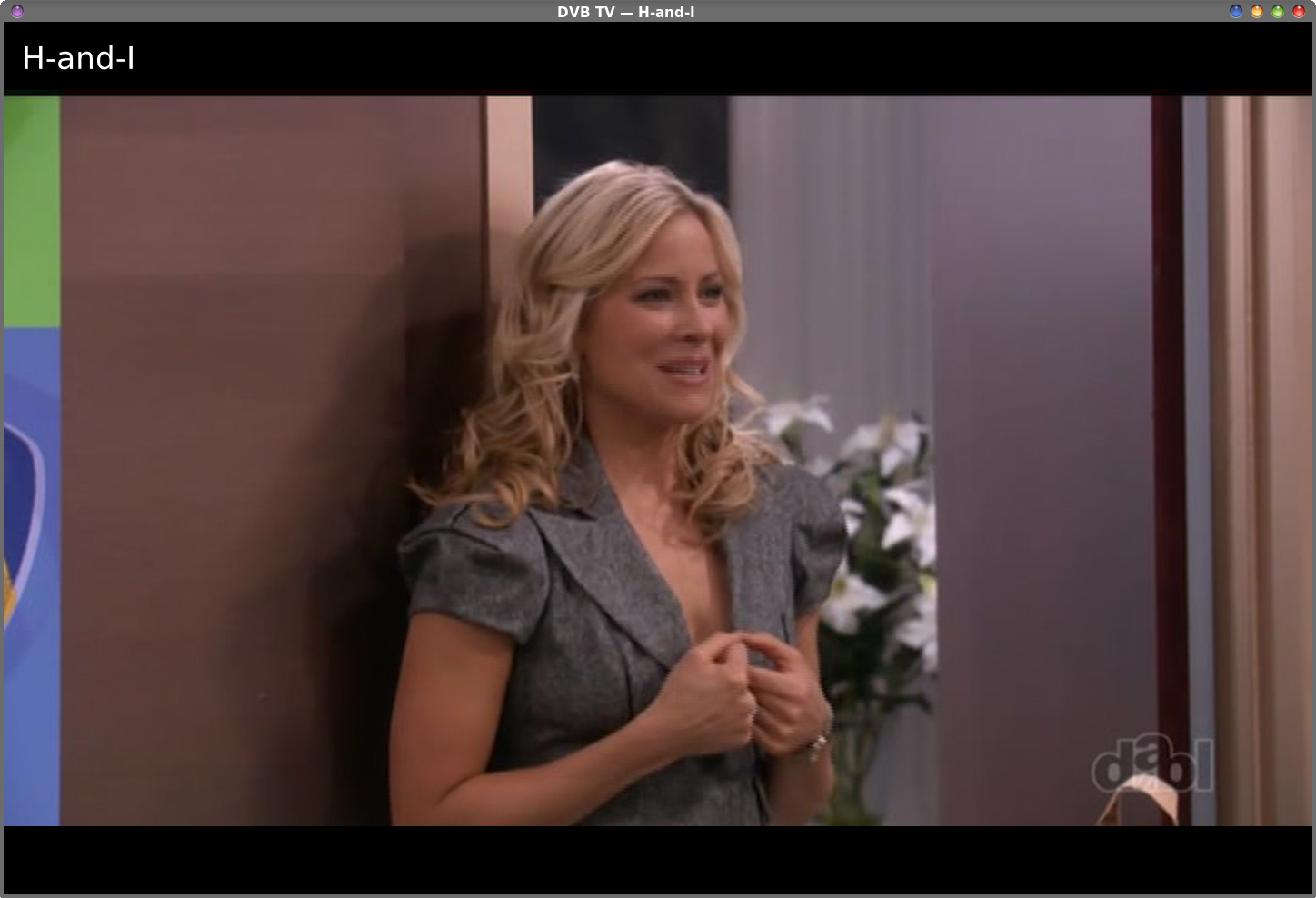 The channel display changes in the window title bar and is briefly displayed in the blank space over the mpv image (upper left) when you change channels. Here, I was going from the Dabl channel to H&I. The channels are changed with the up and down cursor keys.
I had the idea and concepts of what I wanted, but not the ability. This is where ChatGPT came in. And even then, ChatGPT took *at least* five different attempts to get the bash script to where it would change channels smoothly. It was the exact same story with the Python3 version that I had it create after completing the bash script version (just because I could). I then took the scripts produced by ChatGPT and “tweaked” them to be more like what I envisioned. That included changing some text labels, adding in the deinterlacing commands, and setting the window geometry. And these scripts are a model of efficiency and speed. The bash script is 21.4 KiB in file size (1000 lines). The Python3 script is 13.5 KiB in file size (396 lines) (miraculously, the file size dropped from 29.4 KiB with version 4, to the 13.5 KiB file size with version 5). And that’s not even mentioning the first script I shared in this article, which is only 341 bytes long. The Python3 script is a little “laggy” when changing channels, but I’m out of “time” on my free ChatGPT account to “fix” that issue at this time. But, it is fixable, and I plan to revisit it in the near future to see if it can resolve the lag issue (once I’ve built up some more time on my free ChatGPT account). But, in talking about efficiency and speed, my CPU usage meter in Xfce typically reads between 12 and 14 percent when running the script and mpv. That’s in addition to all of the other things running at the same time (currently, Firefox, Geany, Mousepad, 2 different xfce4-terminal windows, PySol, Thunar, and Midori, all just on the desktop and visible).
I honestly wasn’t expecting ChatGPT to create a 1,000 line bash script. And, I wasn’t anticipating ChatGPT having to do an end-run around the issue of mpv not having full DVB support. I’m not THAT good of a scripter to have been able to figure out how to use MPEG transport streams, FIFO pipes, and the other tools to make all of this work how I was envisioning. Most of that stuff is way beyond my abilities, and definitely way above my pay grade. But, in the end, I ended up with another option for viewing OTA TV broadcasts on my PCLinuxOS desktop. Plus, it was achieved with very little overhead. I’m impressed by its simplicity. Will it record or time-shift programs? Not at all. But the vast majority of time, I don’t find myself needing those abilities. Most of the time, I just want to be able to watch OTA TV broadcasts on my PCLinuxOS desktop, and this does so admirably. So move on over, Kaffeine. I think I may have found a new “go to” viewer to watch TV on my PCLinuxOS desktop. It’s not that Kaffeine is a bad program. In fact, I still love Kaffeine. But MPV DVB TV allows me to watch those OTA TV broadcasts with a minimum of overhead. It does one thing, and does it well … just like a well-behaved Linux program should. |